Backend Deployment
1. Clone Source Code
Source code link:
https://github.com/kentdoan/qr-attendance
Open your Terminal and clone the repository:
git clone https://github.com/kentdoan/qr-attendance.git
cd qr-attendance/backend
2. Build the Application
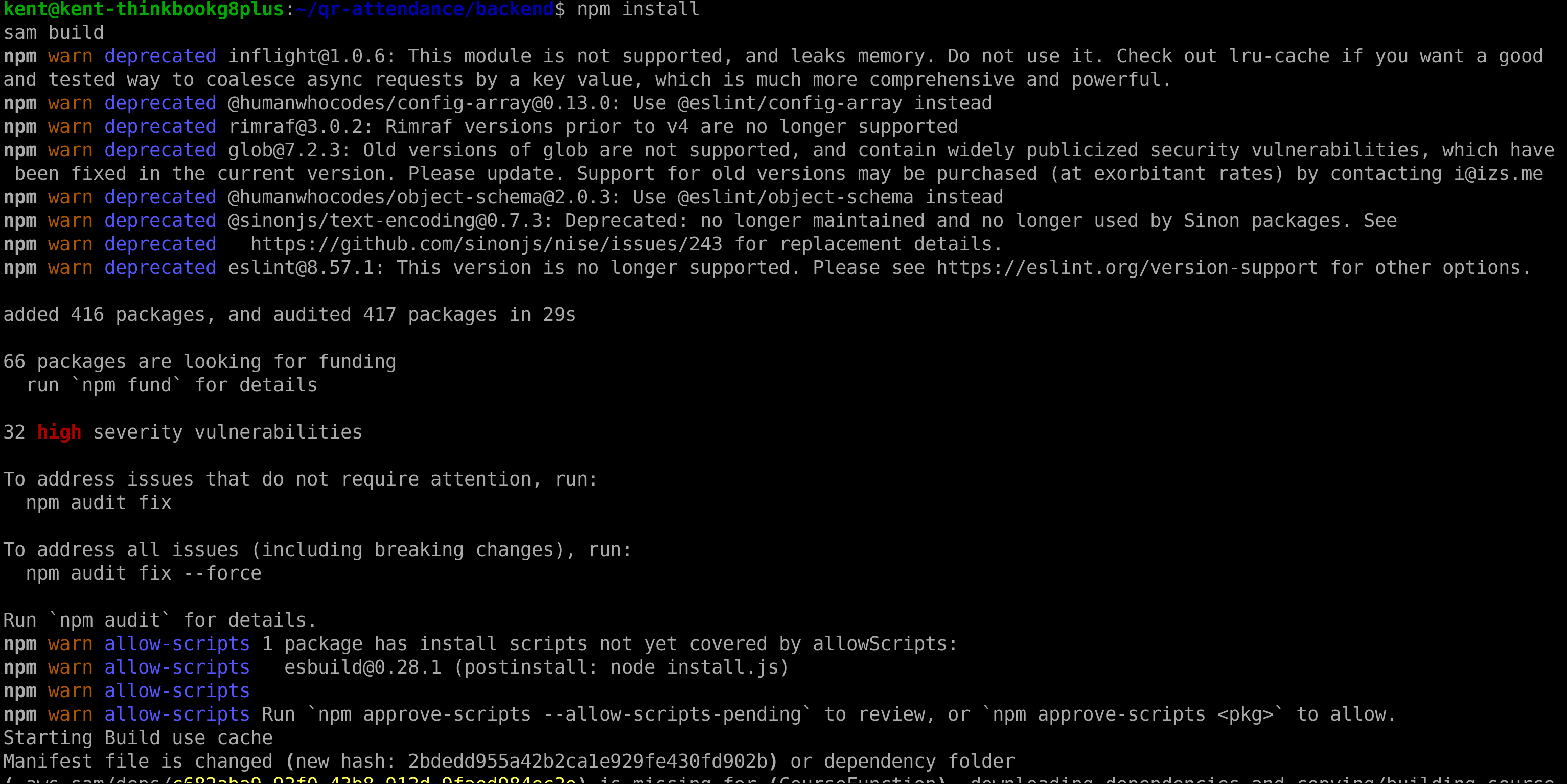
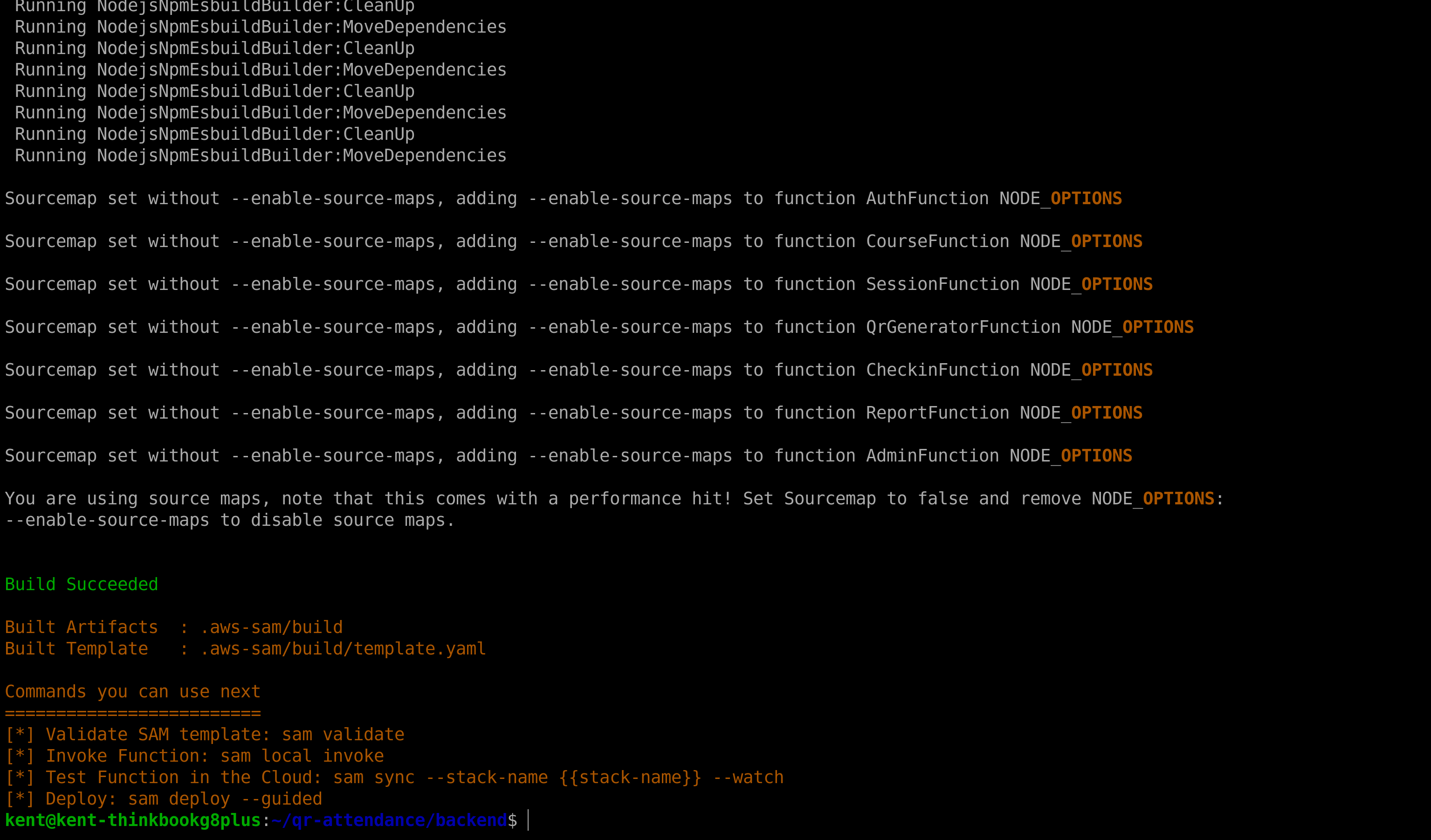
Use npm install to download dependencies first, then use AWS SAM to bundle the Lambda code using ESBuild:
npm install
sam build
3. Deploy to AWS
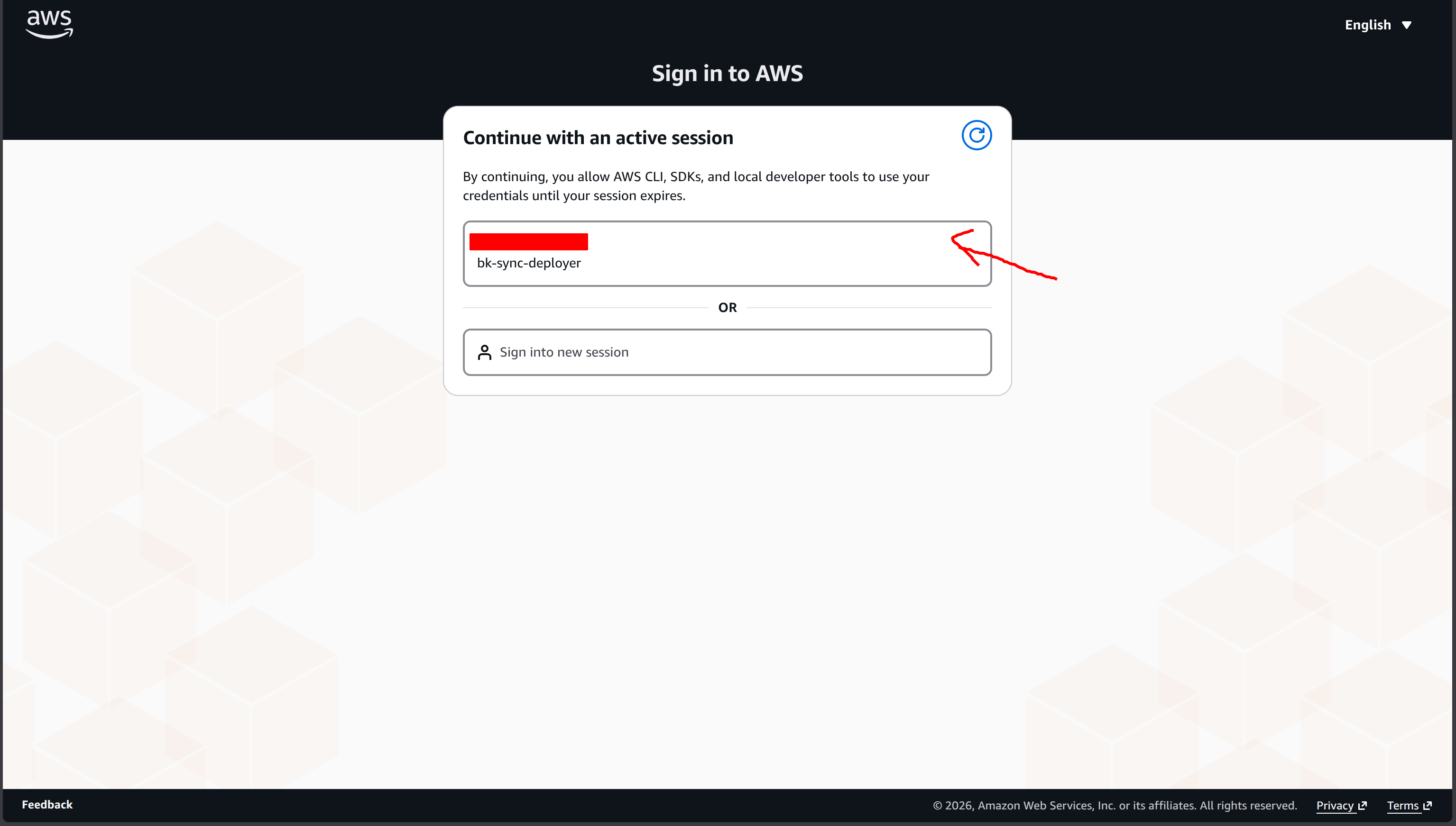
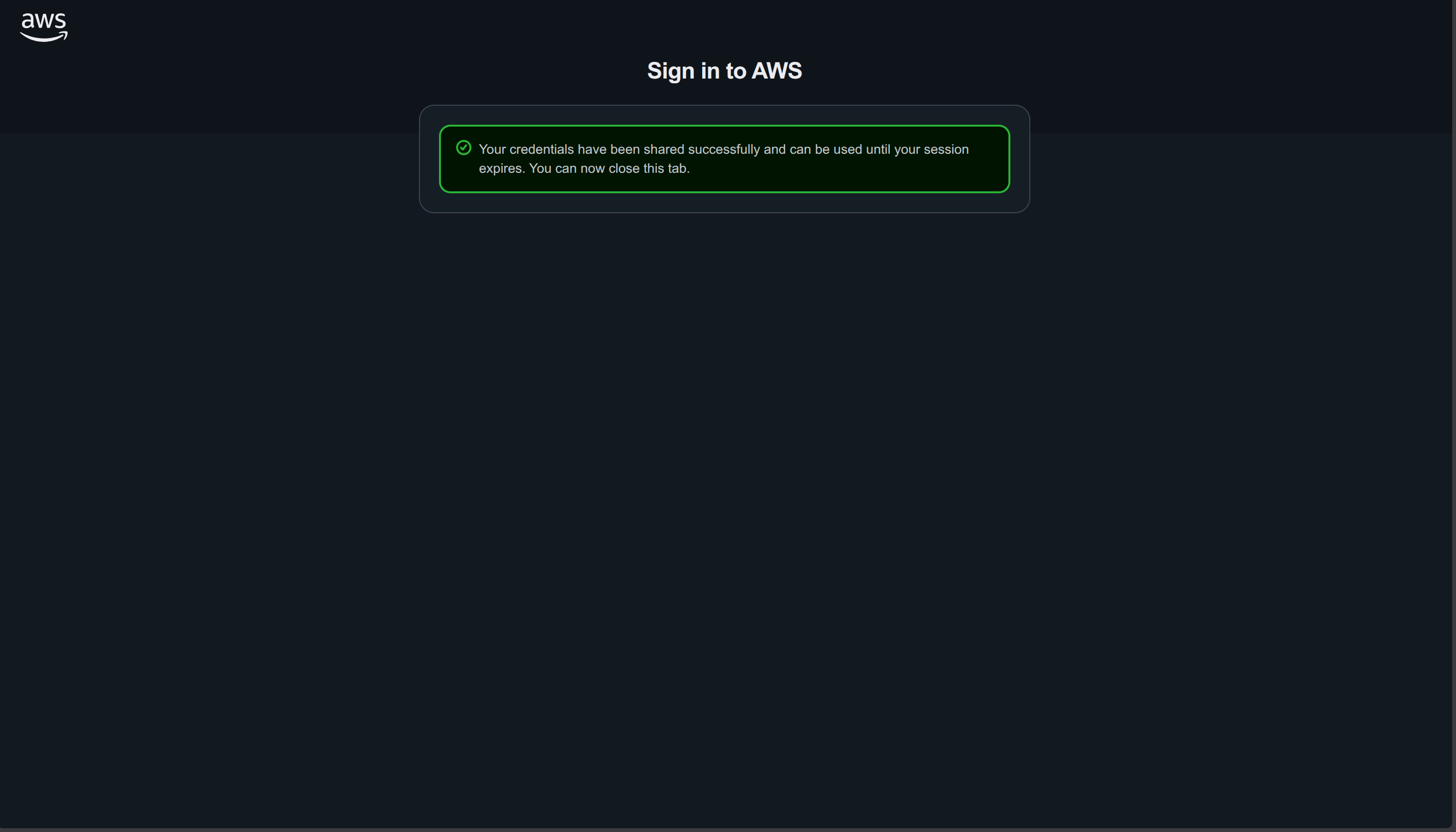
Before deploying, ensure you have logged in and linked your Terminal with your AWS account:
aws login

Then, run the following command to deploy the infrastructure to AWS (CloudFormation will automatically provision Lambda, API Gateway, DynamoDB, etc.):
sam deploy --guided
The system will prompt you for configuration. Answer as follows:
- Stack Name:
qr-attendance-backend-dev - AWS Region:
ap-southeast-1 - Confirm changes before deploy:
y - Allow SAM CLI IAM role creation:
y - Disable rollback:
n - Save arguments to configuration file:
y - SAM configuration file: Press
Enterto keep the defaultsamconfig.toml - SAM configuration environment: Press
Enterto keep the defaultdefault - Deploy this changeset? : y
Wait about 2-3 minutes for the deployment to finish.
4. Save Configuration Outputs
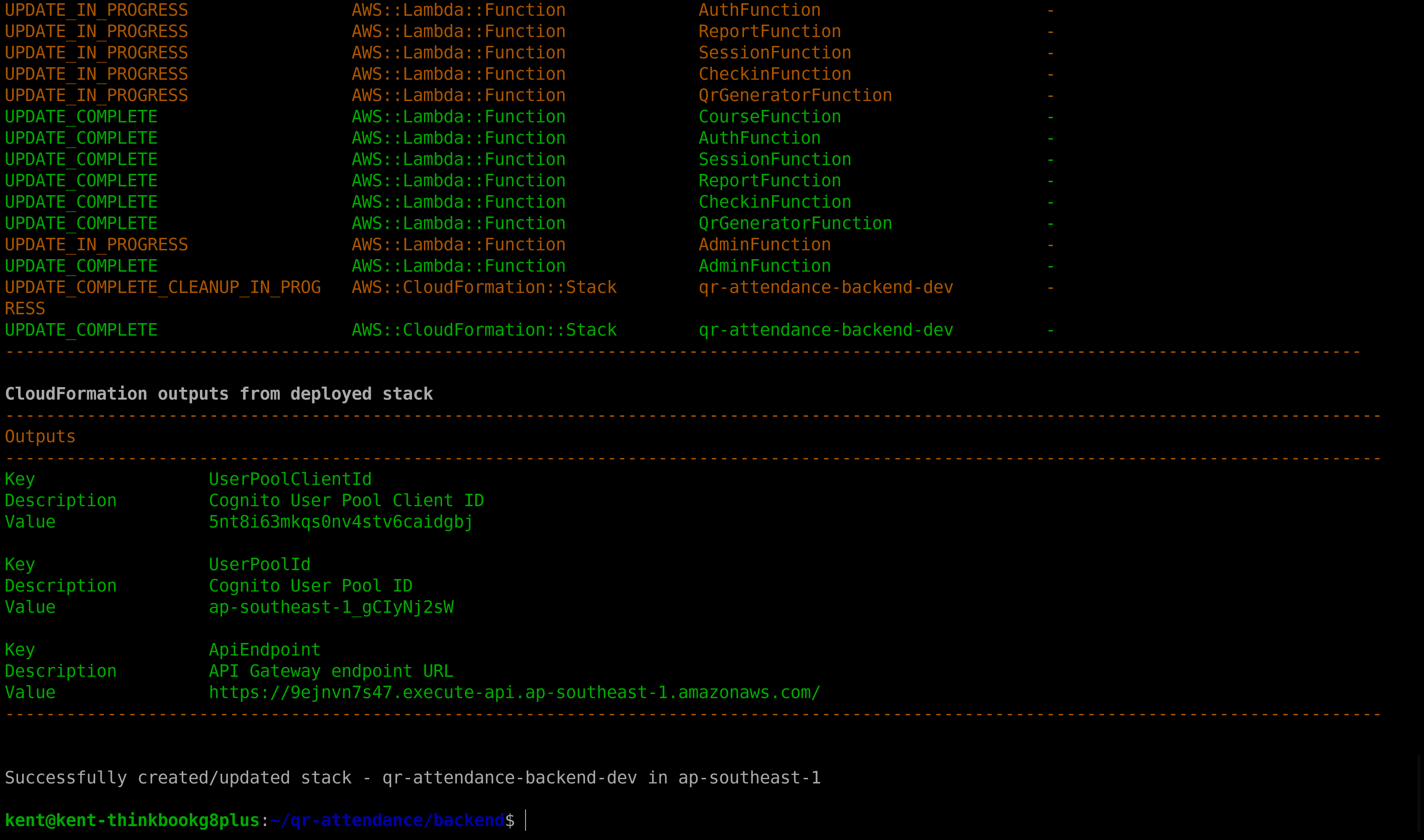
Upon successful deployment, the Terminal will print an Outputs table. You MUST SAVE the following 3 values to configure the Frontend in the next step:
ApiEndpoint(The API Gateway URL)UserPoolId(Cognito User Pool ID)UserPoolClientId(Cognito App Client ID)
5. Create an Admin Account
To log in and create classes, you need an Admin account. We have provided a script that automatically connects to AWS to create this account for you.
Run the following command in your Terminal (ensure you are in the qr-attendance/backend directory):
cd ../scripts
chmod +x create_admin.sh
./create_admin.sh
The system will automatically find the AWS connection and prompt you for an Email, Password, and Full Name.
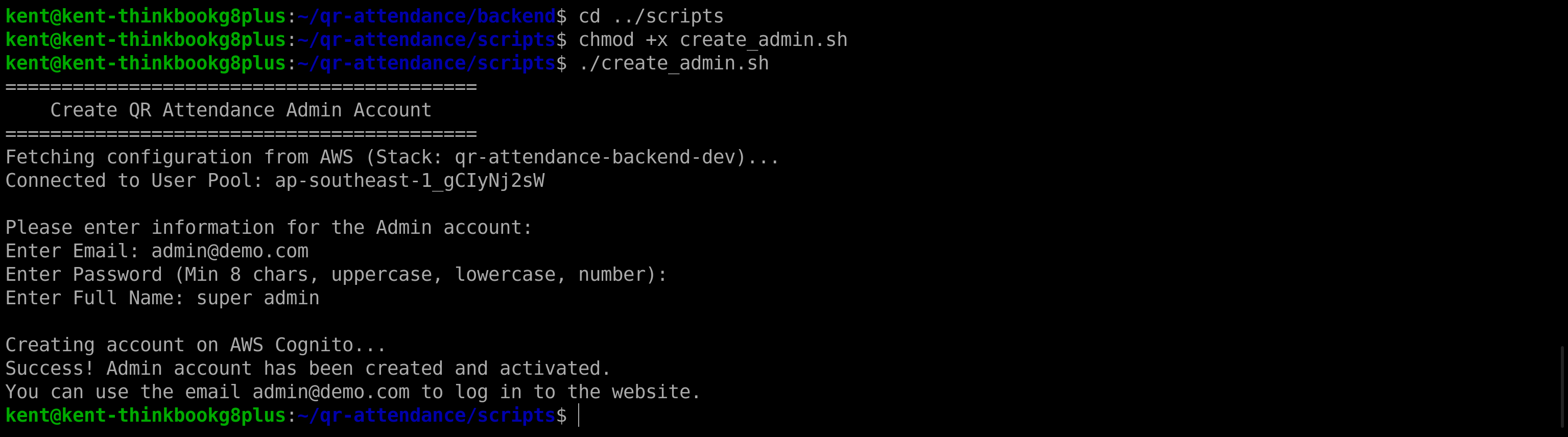
When the screen says “Success!”, you can use this account to log in to the website in the next section.