UI & Testing
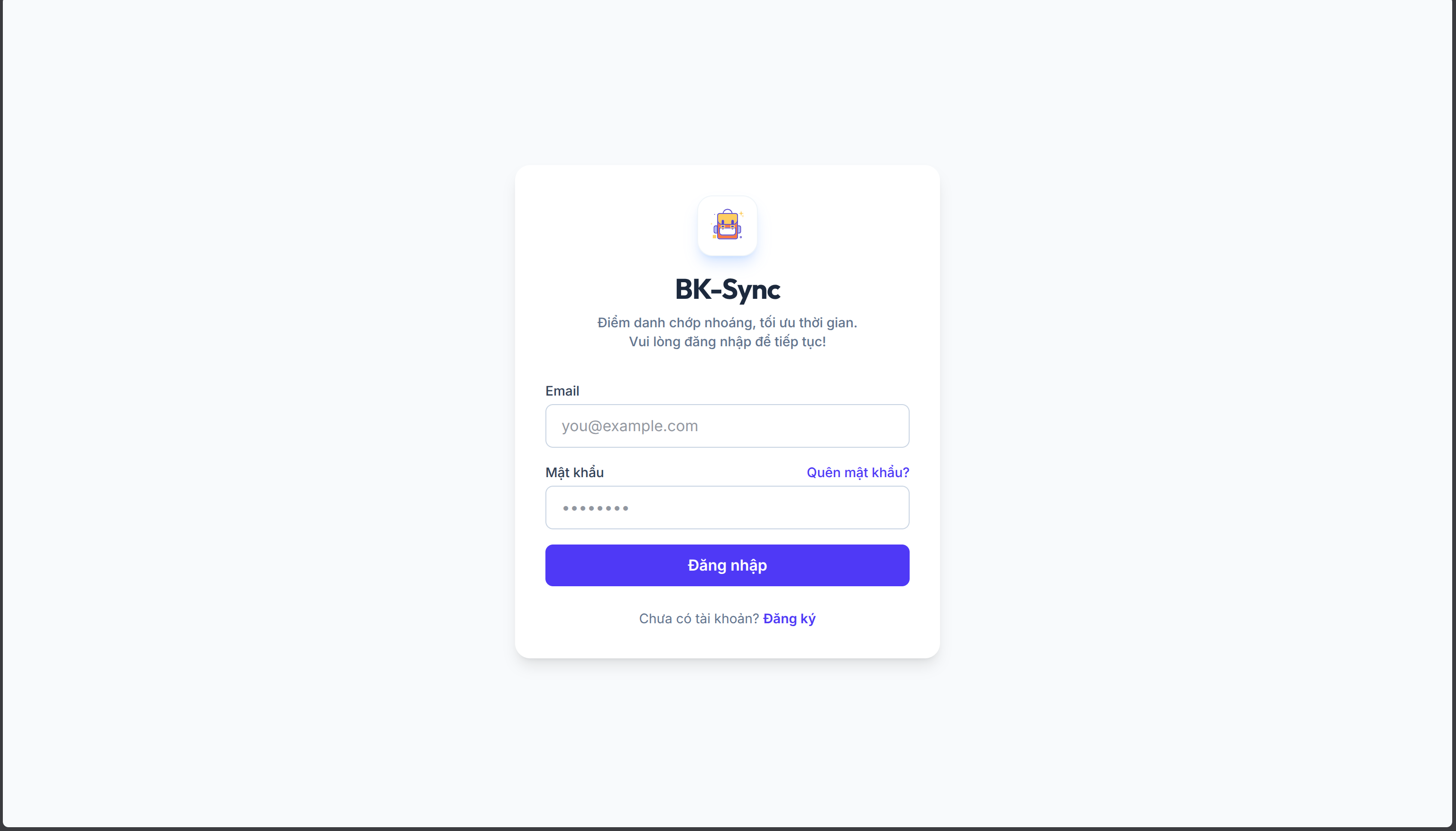
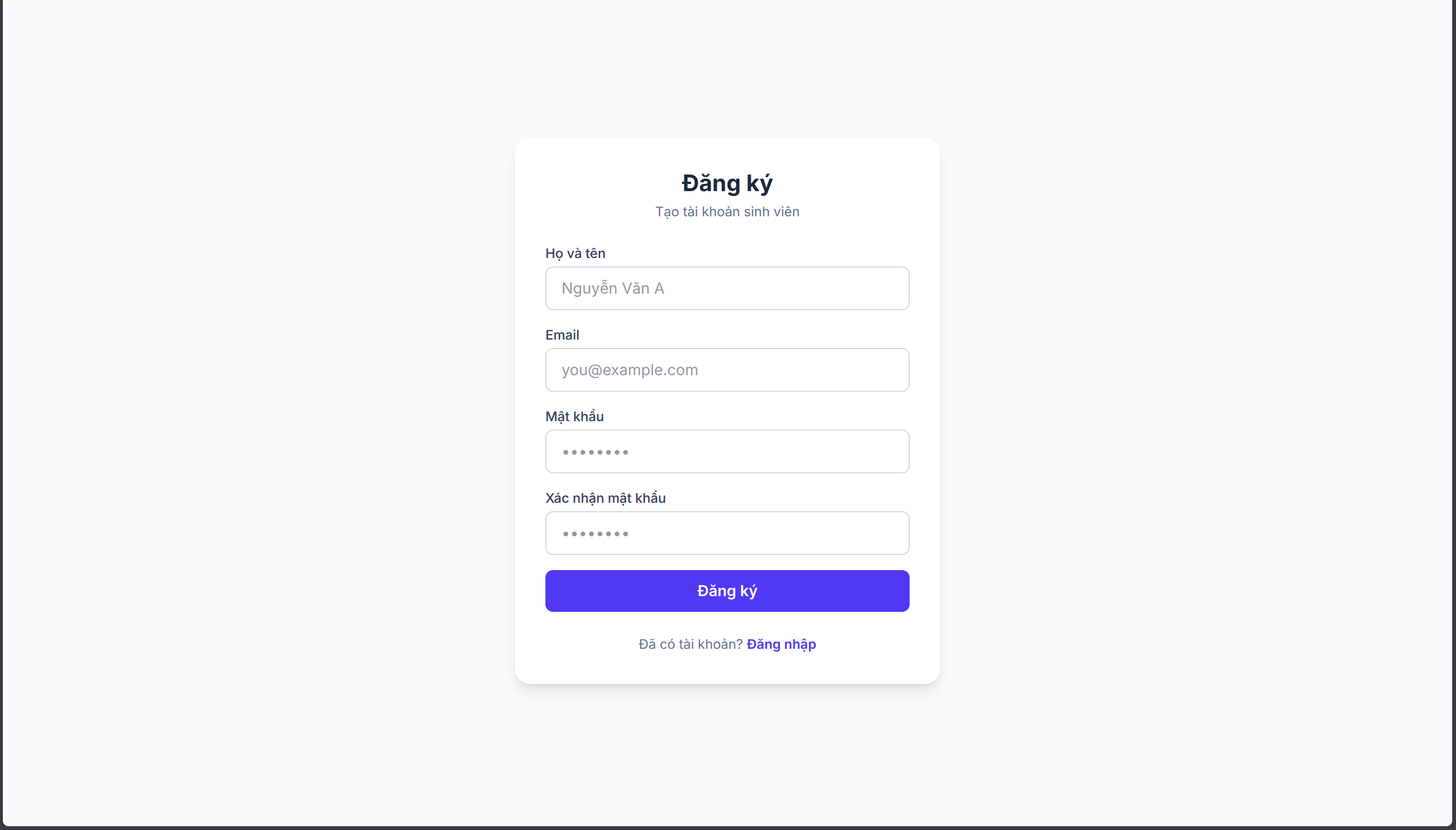
1. Registration/Login UI & Admin
Registration/Login
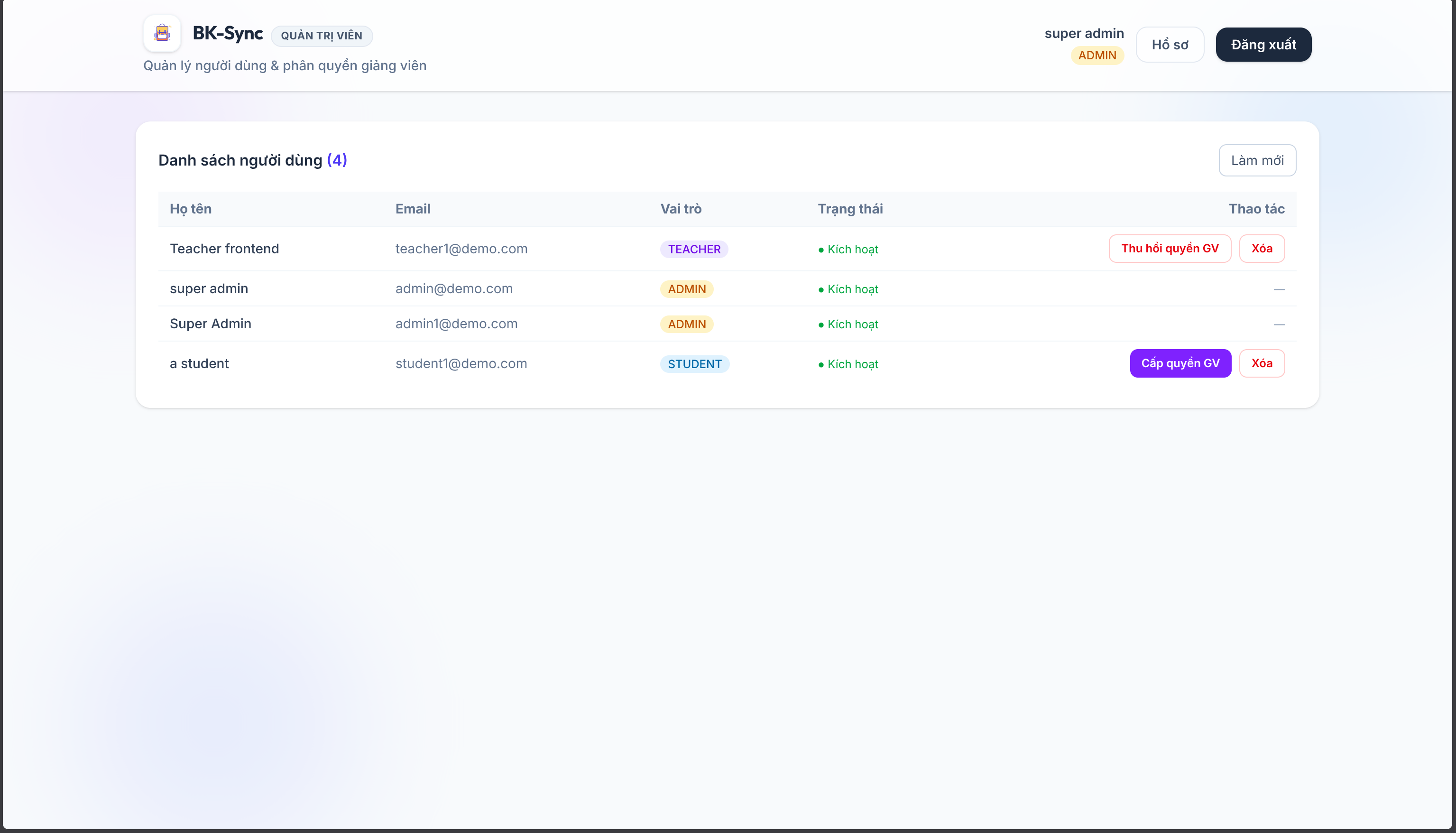
Admin Dashboard
2. Testing
Teacher creates an attendance session
- Log in with the Teacher account.
- Click Add Course (Thêm môn học) to create a new course.
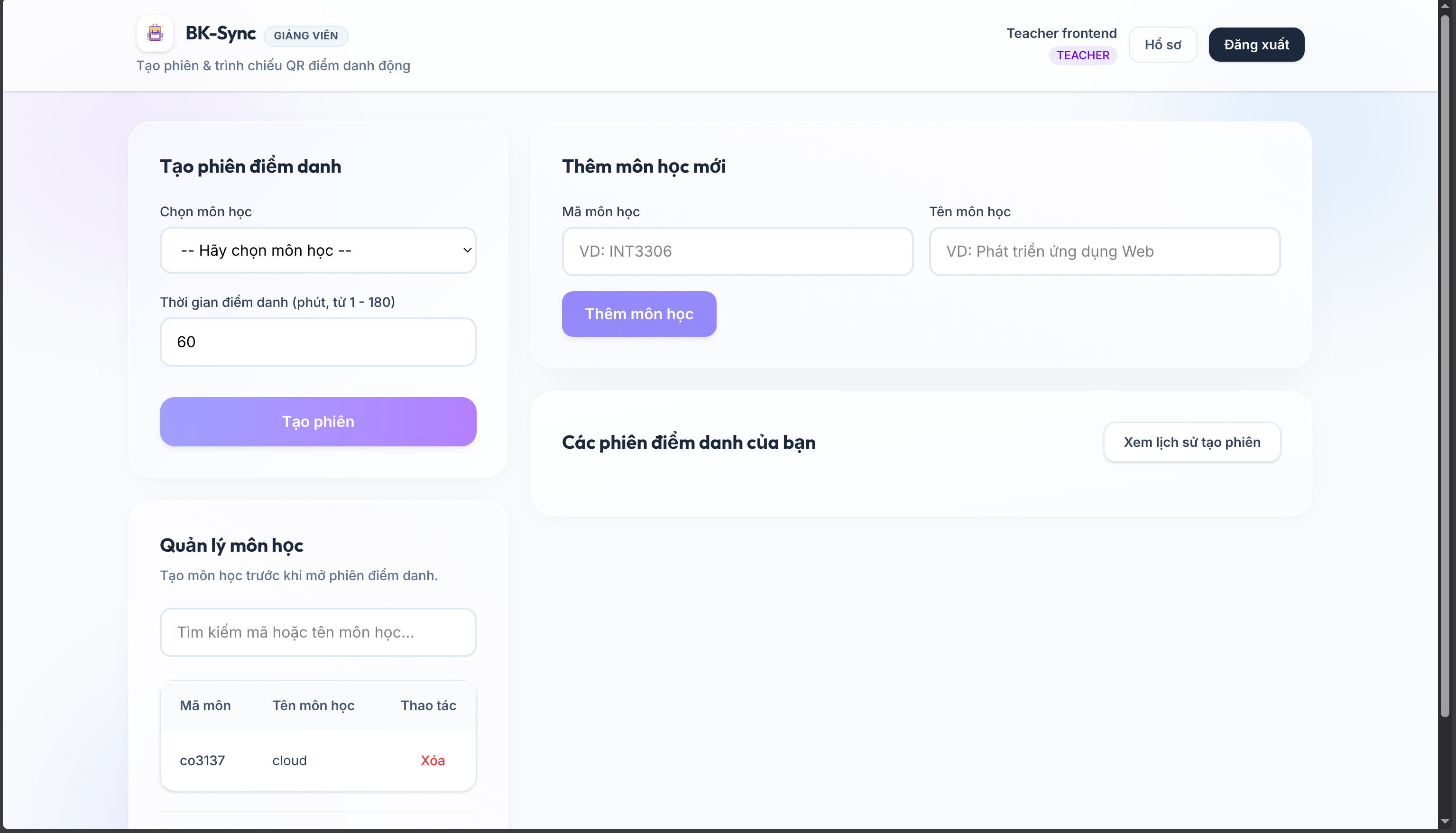
- In the course details, click Create Session (Tạo phiên).
- The screen displays a QR code. Notice that this QR code continuously changes
every few seconds to prevent proxy attendance!
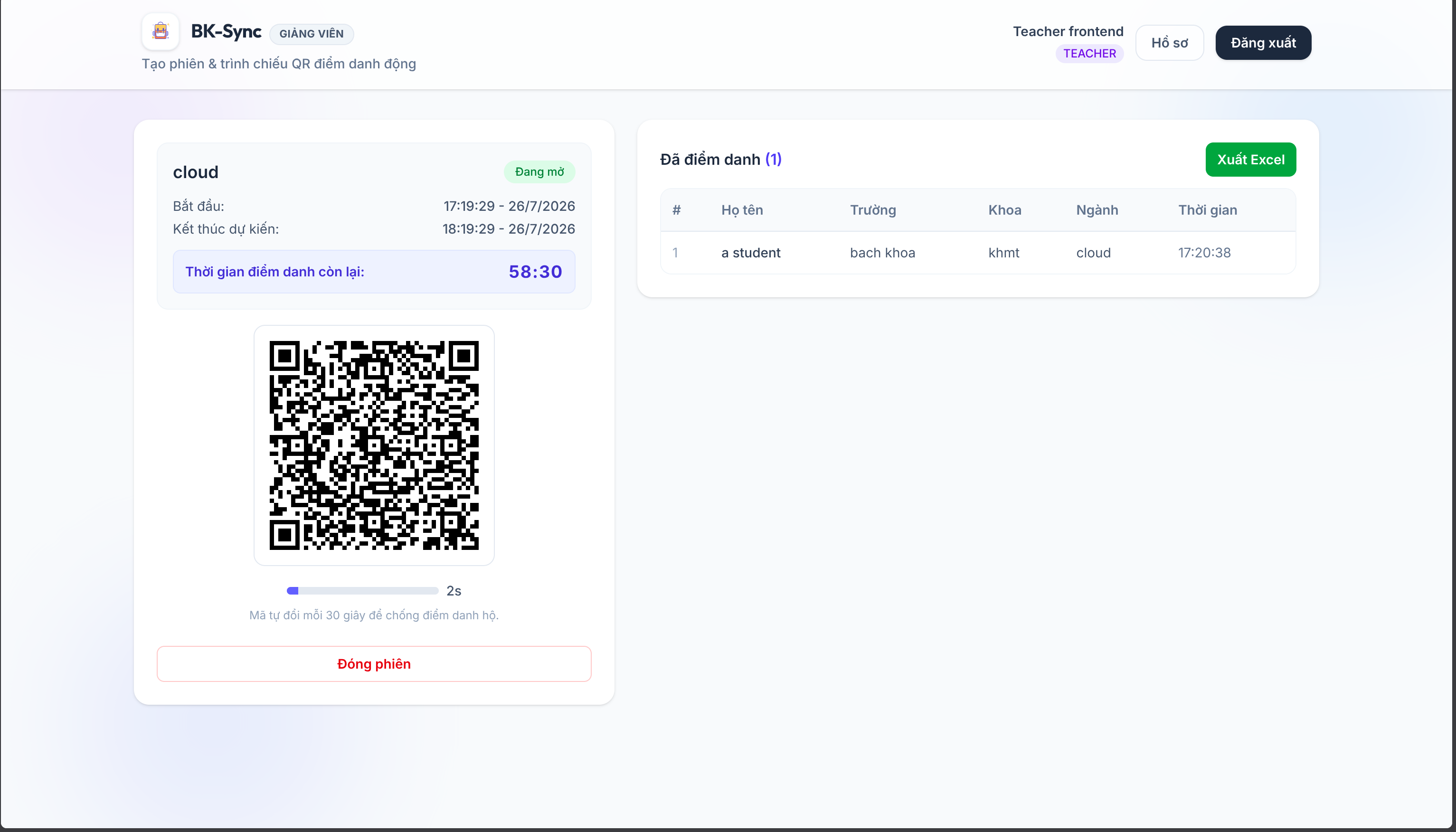
- Students who successfully scan the QR code will appear in the Attendance List on the right. This list can be exported to an Excel file.
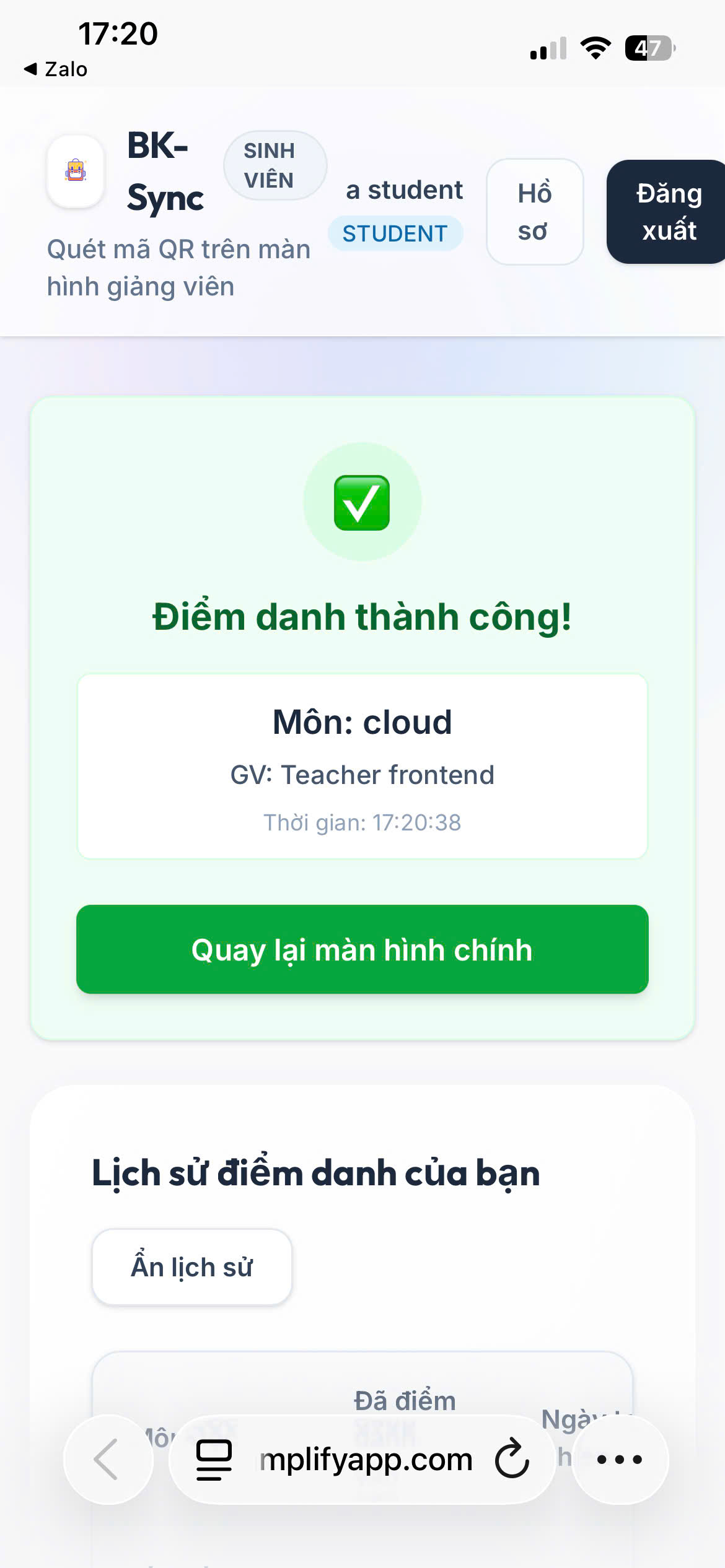
Student scans QR (Check-in)
- Use your phone to access the website and log in with the Student account.
- Click Start Scanning (Bắt đầu quét) to use the camera to scan the QR code.
- A success message appears.
3. View Logs and Metrics (Logging & Monitoring)
To ensure smooth operation, we will examine the logs.
View Lambda Logs:
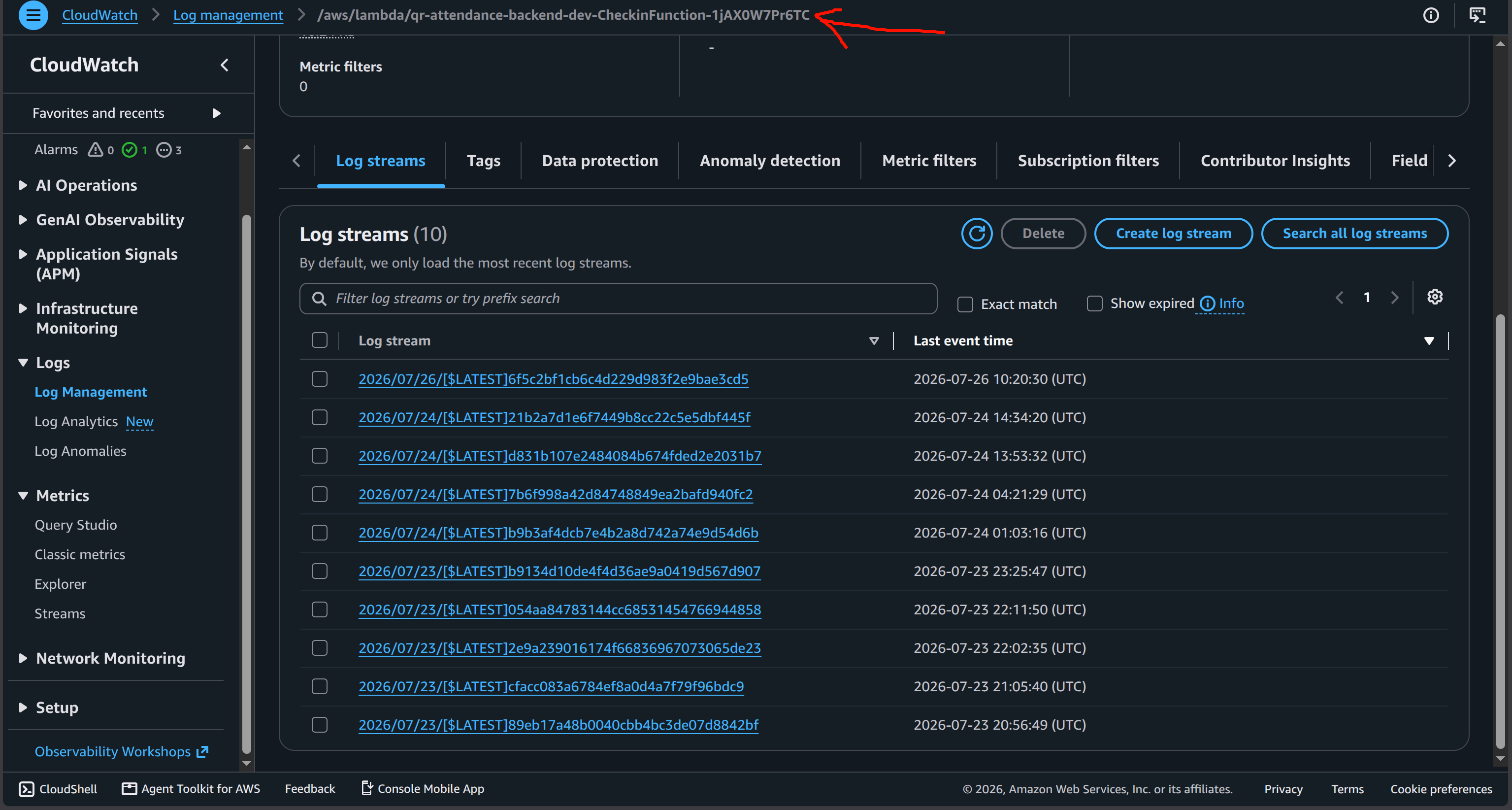
- Open AWS Console -> CloudWatch -> Log Management.
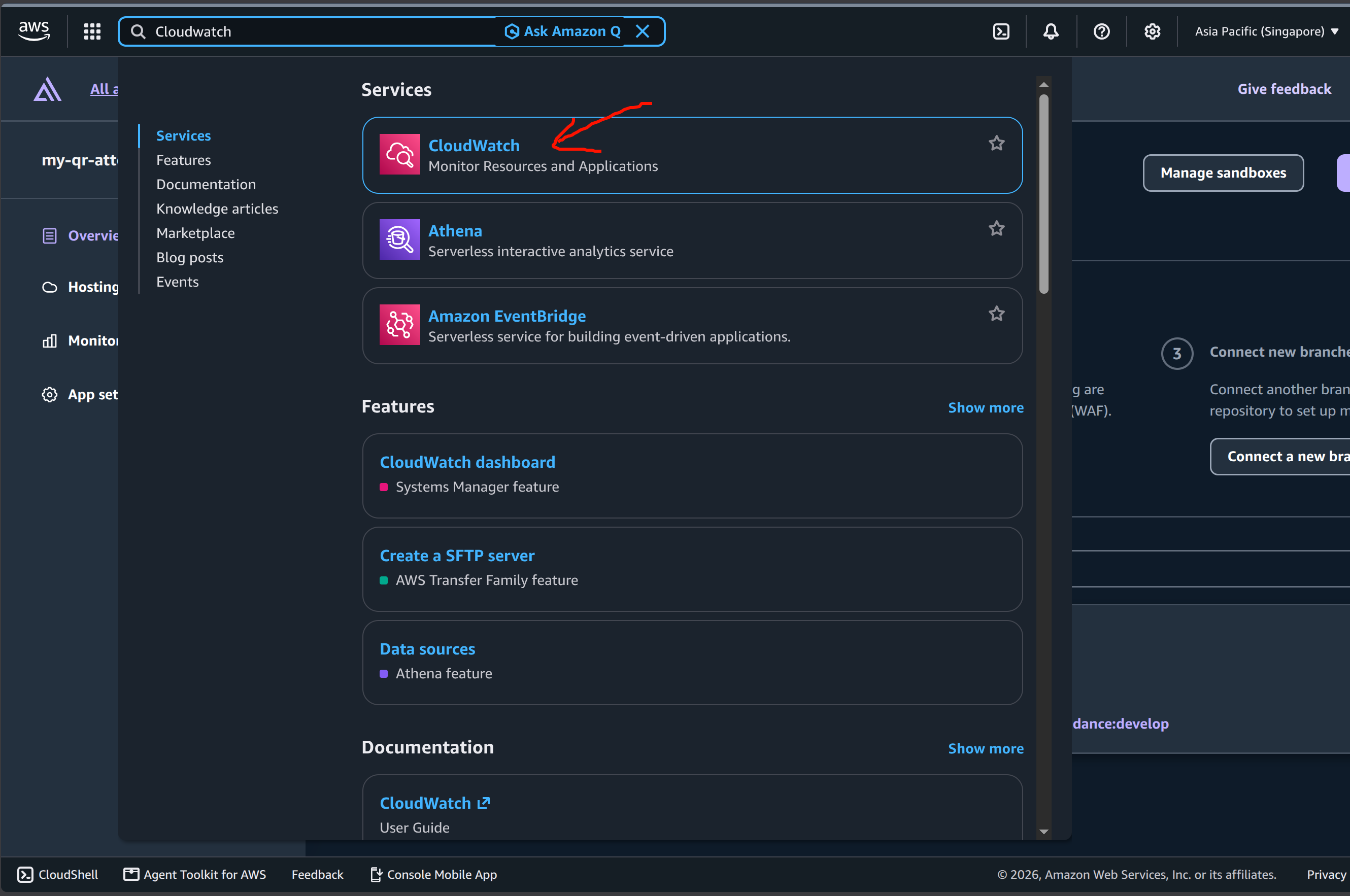
- Find the log group for
/aws/lambda/qr-attendance-backend-dev-CheckinFunction... - You will see log entries recording successful student check-ins.
Check Metrics:
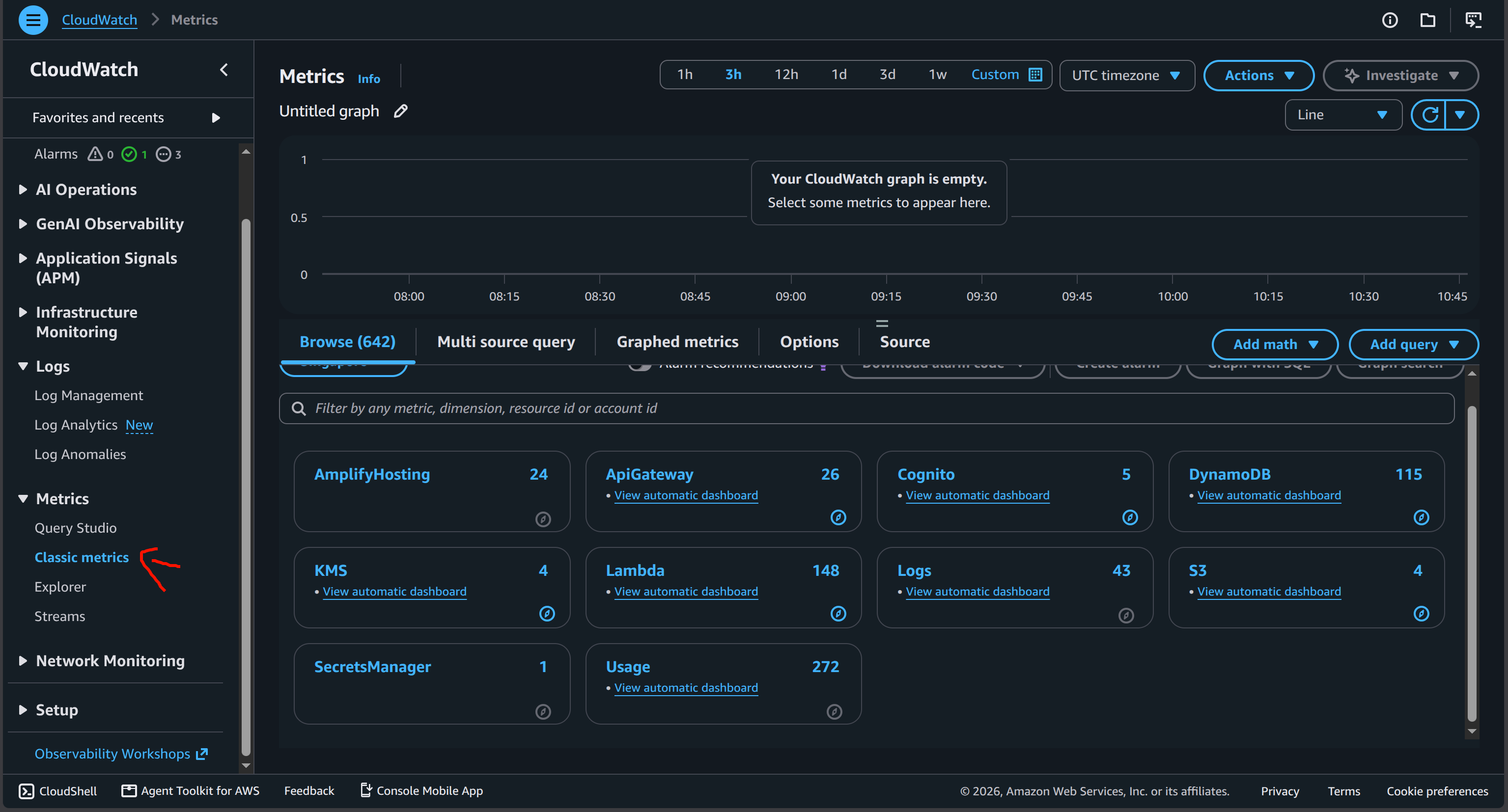
- Open AWS Console -> CloudWatch -> Metrics -> Classic metrics
- Here you can view various infrastructure-related metrics.